
With the rise in Artificial Intelligence, many organizations are exploring how they can leverage AI tools to help their employees become more efficient. Doesn’t everyone want more coffee breaks?
A study by Harvard Business School (HBS) and Boston Consulting Group (BCG) found that consultants who used AI tools, particularly generative AI like ChatGPT, significantly increased their productivity, completed tasks faster, and produced higher-quality results compared to those without access to AI.
Key findings in the study were:
- Consultants using AI finished 12.2% more tasks on average
- Tasks were completed 25.1% faster with AI assistance
- Consultants using AI produced results that were 40% higher quality
For the full article, you can reference the link.
There are many tools you can use, including OpenAI’s ChatGPT, Anthropic’s Claude, and Microsoft’s Copilot. Each has its pros and cons. For example, Claude is known for providing the most human-like text responses, perfect for when you need to feel validated (or mildly judged). Additionally, there are other solutions tailored for specific purposes. Take Pi , for instance—a digital shoulder to cry on.
This article will focus on Copilot, primarily because of the benefits of incorporating AI into Microsoft Office products. With over 1 billion users worldwide using Office tools, it’s a great place for the ‘Everyperson’ to start.
In my organization, I was one of the lucky few to get early access to Copilot. It wasn’t a golden ticket to Willy Wonka’s factory, but it was close enough for me. Here’s how I’ve used it to become more efficient and effective.
What is Copilot?
Microsoft Copilot is an AI-powered assistant integrated into Microsoft 365 apps like Word, Excel, PowerPoint, Outlook, and Teams. Think of it as an employee or coworker who always knows the answer, never takes sick days, and won’t judge your love for overly complicated Excel formulas.
It takes prompts from users and responds by providing assistance, such as making suggestions, performing analyses, summarizing multiple sources of information, and ultimately helping you work more efficiently and effectively.
The tool can be leveraged to function in various personas. Note: all these images were created using Copilot.
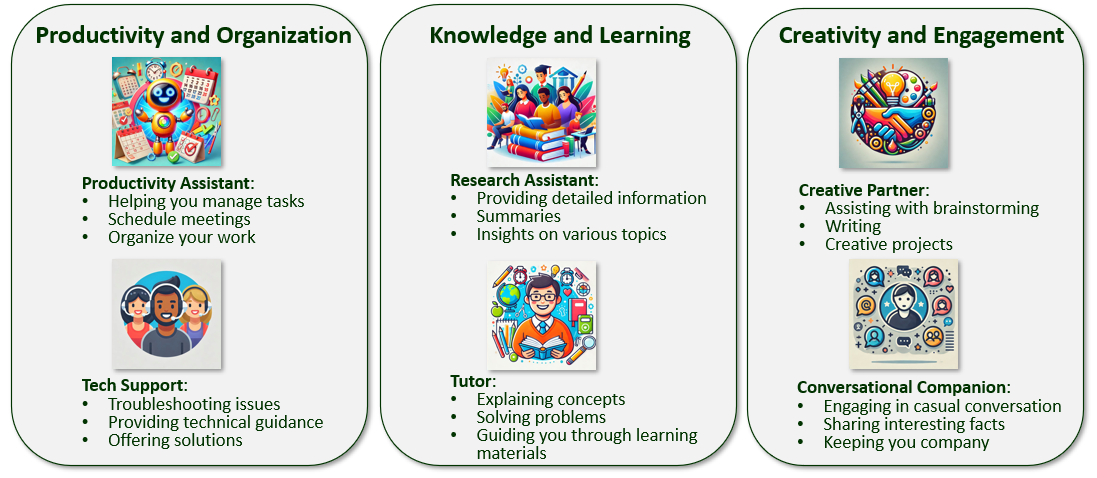
How Copilot works?
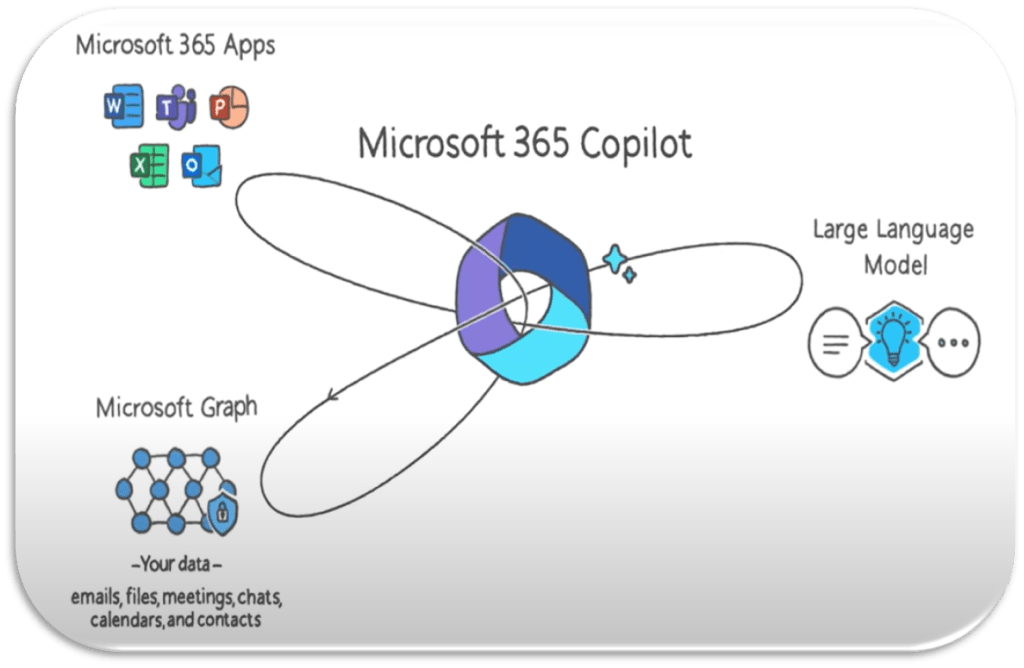
For the Microsoft Copilot pro or enterprise version of the tool, Microsoft Graph serves as a connector that allows Copilot to retrieve data from an organization’s Microsoft 365 environment (including emails, documents, calendar, Teams chat etc.). This will be based on the security rights of the user who is making the prompt.
For more details, you can reference the Microsoft link here.
How I use Copilot
Copilot is integrated with multiple tools; however, I use it most often as a standalone chat app or in Outlook. It’s like having an assorted box of chocolates—but I mostly go for the caramel and the truffles! I’ve also tried it in Word, Excel, and PowerPoint, and I’ll share my experience.

Copilot Chat App
The chat app allows you to engage with Copilot outside of specific applications. For business users, there is toggle to use Work or Web. For Work , it leverages Microsoft Graph to access information from your organization’s environment (like files, emails, and calendar events), provided you have the appropriate permissions.
Some helpful prompts that help me stay efficient.
| Category | Prompt |
|---|---|
| Meeting Management | Give me a list of my upcoming meetings tomorrow. |
| Meeting Management | I have an upcoming meeting about [Topic/Project Name] with [Participant(s) Name], who is a [role] at [company]. Help me prepare for the meeting. |
| Performance Reviews | Help me write a mid-year review for [Employee Name]. Identify all projects worked on this year and highlight any accomplishments. – Constructively identify 2-3 areas for improvement in the coming months. – Recommend 1-2 key projects or responsibilities for them to focus on to maximize their strengths. |
| Proposal Critique | I have put together a proposal and attached my report with data points. Please critique this decision, highlight any potential risks or unintended consequences, and offer counter perspectives. |
| Preparation for a conversation | I need to prepare for a conversation with my [manager/client] about [summarize situation]. Please act as my coach by roleplaying as my [manager/client] and responding realistically based on the situation provided. After the roleplay, offer constructive feedback on my performance, including my negotiation tactics, responses, and tone. Finally, provide suggestions for how I could improve my approach to handle the situation more effectively. |
Leveraging the chat app has been incredibly helpful. On a personal level, I’ve even used Copilot to help me with recipes, especially when I’m missing ingredients, by finding creative alternatives. I also took an AI course at MIT and used Copilot to help me identify libraries and debug my Python code.

Outlook
I find the Copilot integration with Outlook incredibly helpful especially if you have a lot happening with projects etc.
Summarize
Have you ever been caught in a long email chain that seems to go on forever? You can’t figure out who has the action item or what’s happening. Well, there’s a summarize button that can help you keep your sanity.

When you use it, you get a summary of the email chain with bullet points outlining the trail of communication, and it even identifies who has the next action item (so you can politely remind them, or not-so-politely forward it back).
Draft with Copilot
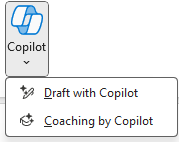
If you want to respond to an email or draft a new one from scratch, Copilot provides the option to do so. You can also customize the draft to match a specific tone, such as making it more direct or warm. For email replies, the draft will include context from previous emails. While I usually tweak it to match my own voice, I find it provides a great starting point.
The Coaching by Copilot feature critiques your responses and offers suggestions. I don’t use this feature very often; however, one of the managers on my team mentioned that it provided her with feedback to use more assertive language when responding to one of her direct reports.
Another helpful prompt you can use with Copilot, especially if you’ve taken time off, is to prompt Copilot to review your emails from the days you were away and list any tasks or action items you need to address. Overall, I find that it helps speed up your responses and makes you more efficient—even if it can’t erase the dread of returning to an overflowing inbox after vacation!

Word
I found Word extremely helpful, especially when dealing with writer’s block. One of the most useful prompts for me was to draft a job description.
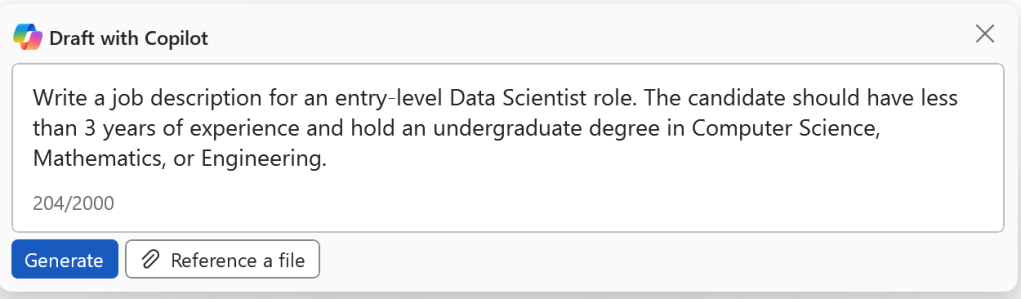
Here’s what it created. As you can see, we have the option to tweak and customize the suggestions as needed.
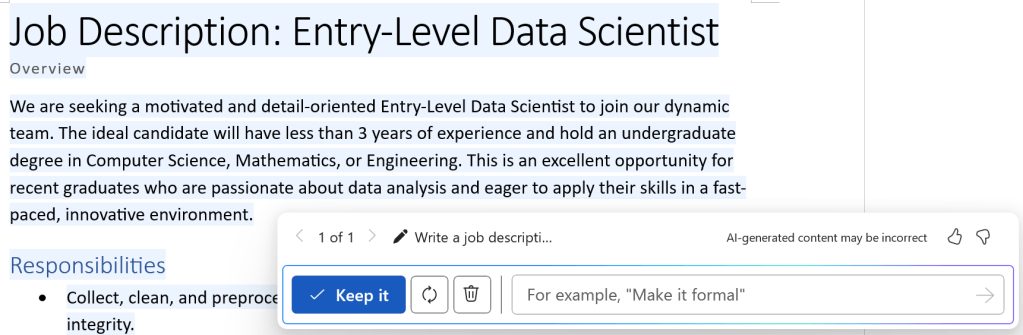
Other helpful scenarios include putting together a requirements document or a proposal. It’s incredibly helpful to have it develop an outline or template that you can utilize. It’s like having a detail-oriented co-worker who never complains about doing the boring stuff!

Excel
I rarely use Excel anymore in my day job, however, I’ll share what I discovered from testing it out.
Before you can leverage Excel, it is important to make sure
- Autosave is enabled
- The data you are using is setup in table format

I used the standard prompts that were available.
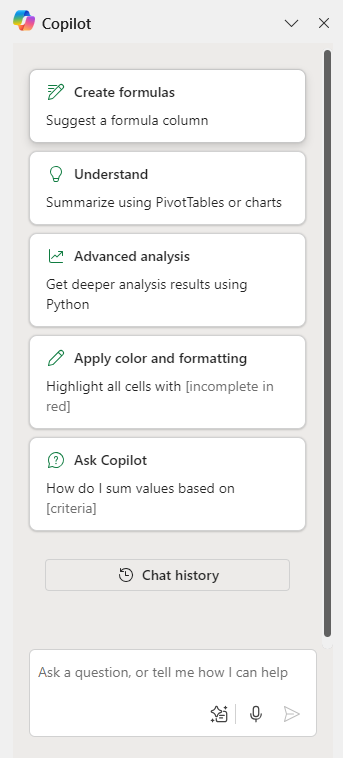
Utilizing formulas and color formatting worked well. However, when it came to advanced analytics and providing viable insights, it didn’t always effectively identify patterns in the data

PowerPoint
The PowerPoint integration with Copilot was my least favorite. The options available within the tool are limited.
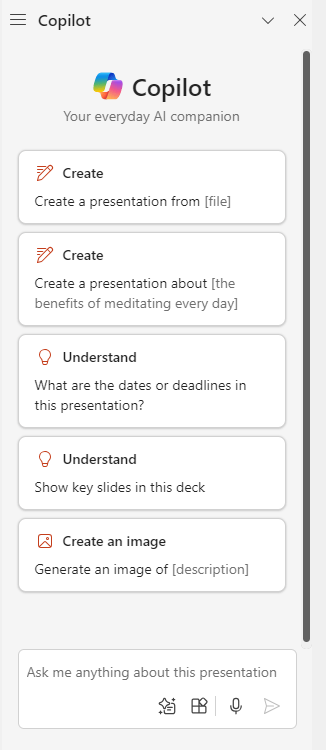
If you choose to create a presentation on a specific topic, you might have better luck with the visuals. However, if you work from an attached file, it doesn’t do a great job of putting everything together. I was also using a work template with branding, which required a lot of manual formatting to make it look appropriate.
Another issue is the limitations of what you can request. I frequently encountered errors when making requests.


Caution
While using Copilot can be incredibly helpful in improving your workflow, it’s important to note that the AI can sometimes “hallucinate”—in other words, it may create patterns or connections that don’t actually exist. Always review the results carefully and perform a sanity check.
When conducting research using AI, make sure to request citations for the sources so you can double-check the results.

Takeaway
AI, like Copilot, has become an essential tool for boosting efficiency and staying ahead in today’s fast-moving world. Getting on the AI bandwagon isn’t just about keeping up—it’s about working smarter, achieving more, and being ready for the future. Start exploring Copilot Chat and see how it can transform your daily workflows and boost your productivity.
Disclaimer: The opinions expressed in this blog are my own and are based on my personal experience with Microsoft Copilot, ChatGPT, Claude, and Pi. This post is not sponsored, endorsed, or affiliated with any of these tools or their creators. While I have found these tools useful, results may vary depending on individual use cases. I encourage readers to explore the tools’ capabilities and assess their suitability for their specific needs.
 Bytes Of Data Insights